Description
FormPays Pro builds contact forms and payment forms, then reports how people use them. A form can collect a message with no charge, or take a payment through Stripe, Adyen, Razorpay, PayU, PhonePe, PayPal, or Instamojo. Stripe and Adyen also offer Apple Pay and Google Pay. Analytics records views, submissions, and payments for each form.
Forms
- Create any number of forms, with required fields, help text, validation, and conditional logic. Website and consent fields are included. An Empty Spacer adds a gap. A Section Divider draws a divider. The form name and description can be shown or hidden. Shown is the default.
- Each form has an Appearance section on the Form tab. A CSS class and custom CSS apply to that form only. Set the form width to full width, a centered box, or a fixed width in pixels.
- An Address field can suggest addresses from Google. Save the API key under Settings Google Address autocomplete, then turn on Suggest addresses from Google for that field.
- Form protection can require the visitor to be logged in, or require a password, before the form is shown.
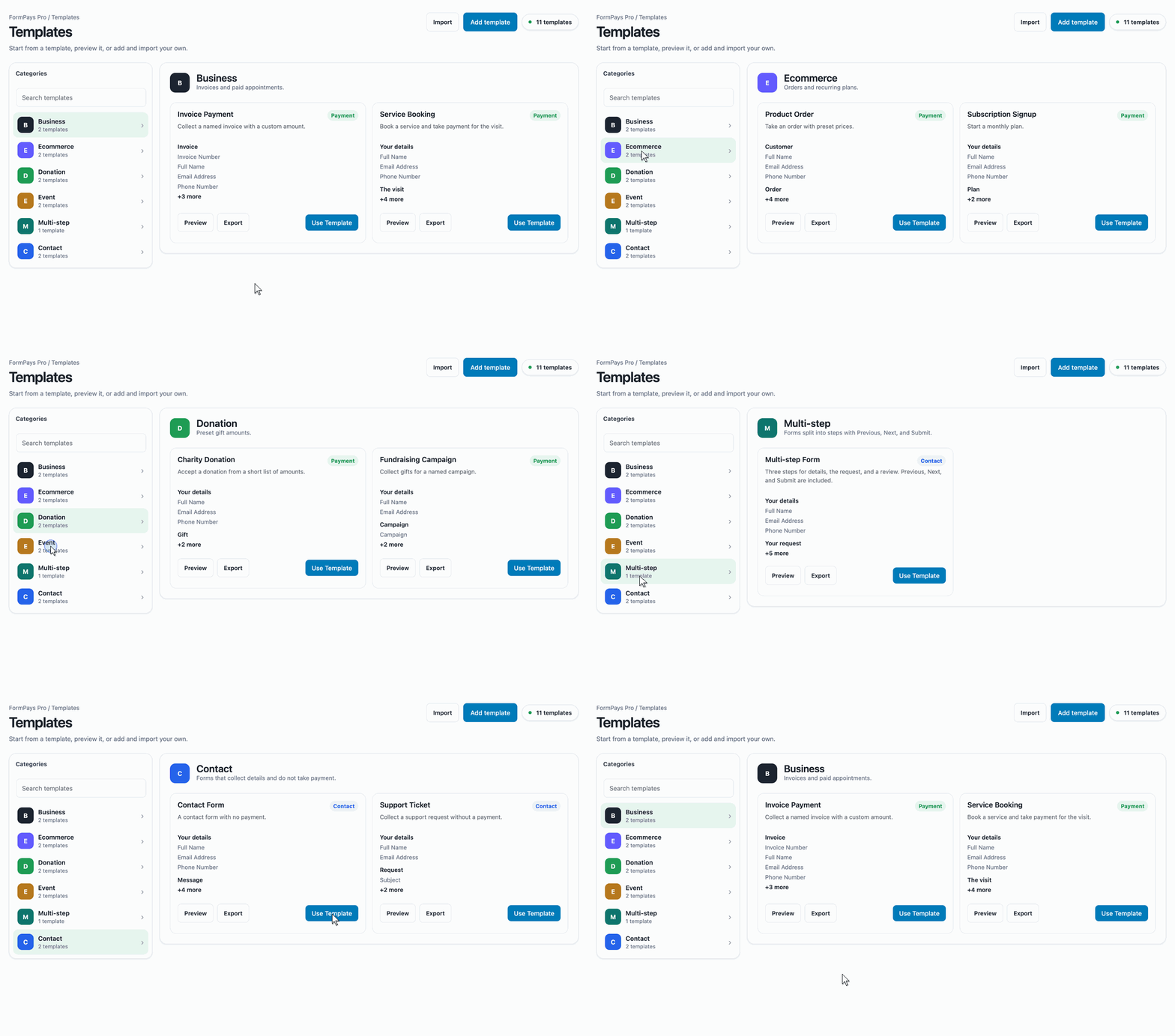
- Start from a template under FormPays Pro Templates. Categories include business, ecommerce, donation, event, contact, and multi-step. Use Template creates the form and opens it in the editor.
- Add a Form Step field to split a form into steps with Previous, Next, and Submit.
- Embed a form with
[formpays_pro id="123"], the FormPays Pro Form block, or the FormPays Pro Form module in Elementor, Divi, Beaver Builder, WPBakery, and SiteOrigin. Pages that already use[formpays_pro_payment_form id="123"]keep working. The block can also build the form in the page editor. Each field is its own block. Saving the page saves a real form, with entries and a shortcode. The forms list shows how many submissions each form has. - Turn Payment Collection off to use the form as a contact form. The submission is stored and emailed to the site admin. No gateway is called.
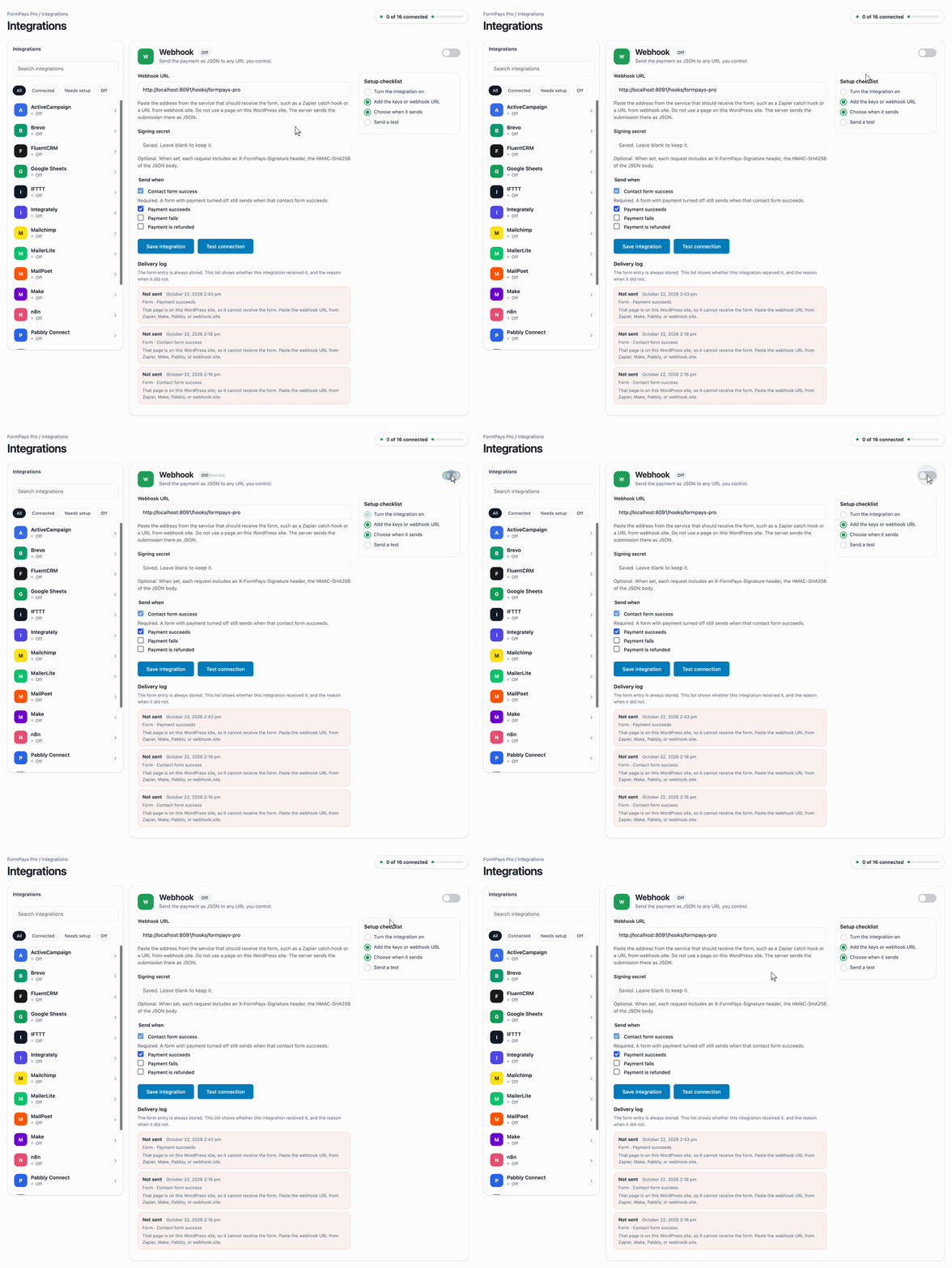
- Open FormPays Pro Integrations to send a submission to a webhook, Zapier, Make, Slack, WhatsApp through the WhatsApp Cloud API, Mailchimp, Google Sheets, or the other included tools. Contact form success is included.
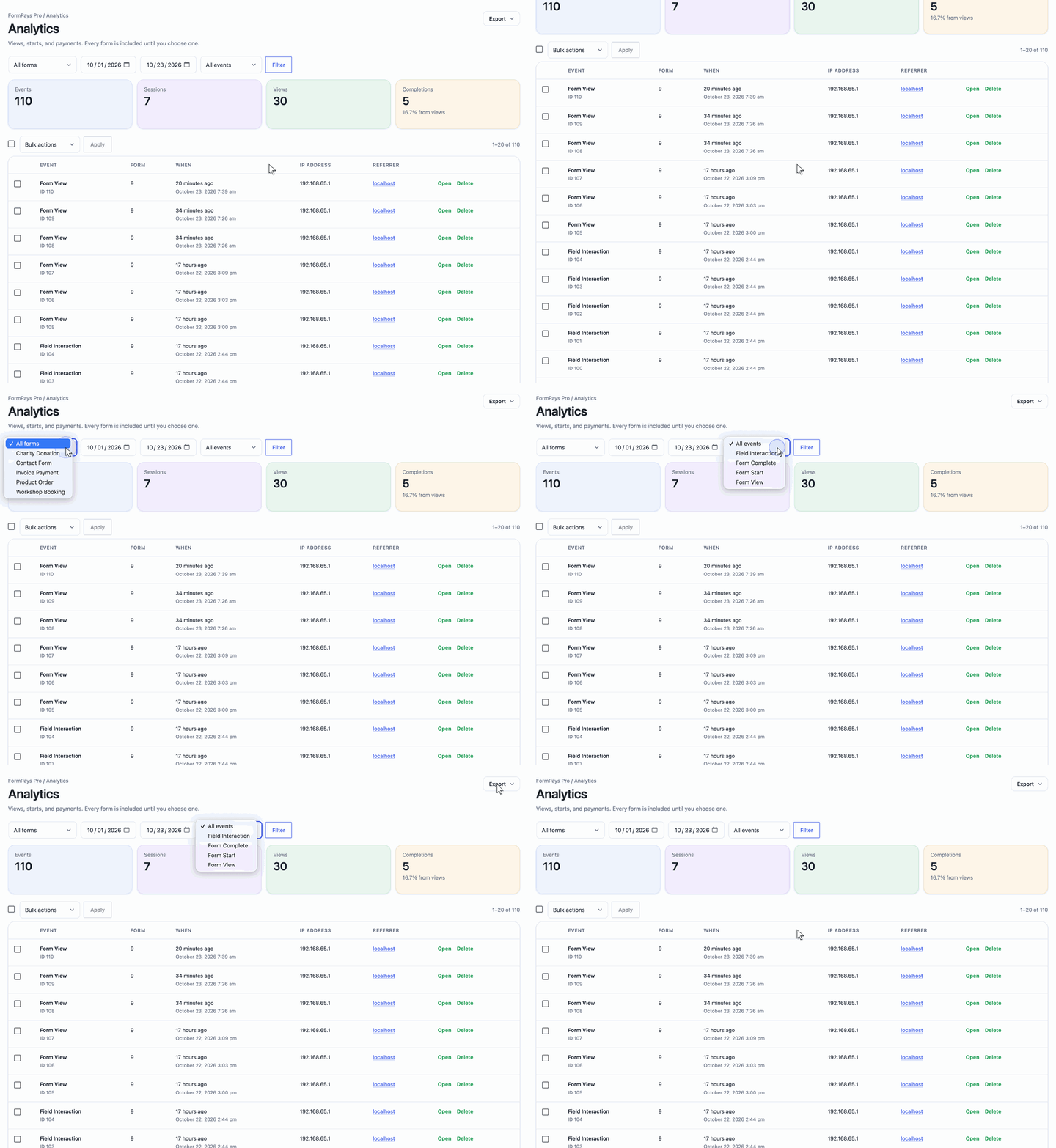
- Turn analytics on or off for each form. Open FormPays Pro Analytics to see every form, or choose one form. The report includes a line chart, complete versus incomplete, device breakdown, views, starts, submissions, and payment results. Records older than 90 days are removed.
Payments
- Charge a fixed amount, an amount the customer chooses, or one of several options. Each option can be a product with an image, a name, a base price, and a sale price. The visitor chooses one product and pays the sale price when it is set, otherwise the base price. The heading above the products is Select amount unless you set an Amount label.
- When only one payment method is available, the form does not ask the visitor to choose a method.
- Show only the currencies the selected gateway accepts.
- Offer a single payment, installments, or a subscription.
- Let the customer save the form and pay later, or pick a date and time slot for the payment link.
- Apply a coupon on the server. Set a percent or fixed discount, an optional form, a minimum amount, an expiry, and a usage limit.
- Email one reminder when a checkout stays pending, and let the customer retry the same payment from a signed link.
After payment
- Refund a successful payment, in full or in part, from the transaction screen. The transaction shows the product the visitor chose. A custom amount is shown with the other answers.
- Download a PDF receipt. Tax rules under Settings Coupons & Taxation follow the customer’s country and state. The amount collected is treated as tax-inclusive. With no rules, the receipt shows the amount paid.
- Give each successful payment the next invoice number, such as FP-2026-00041.
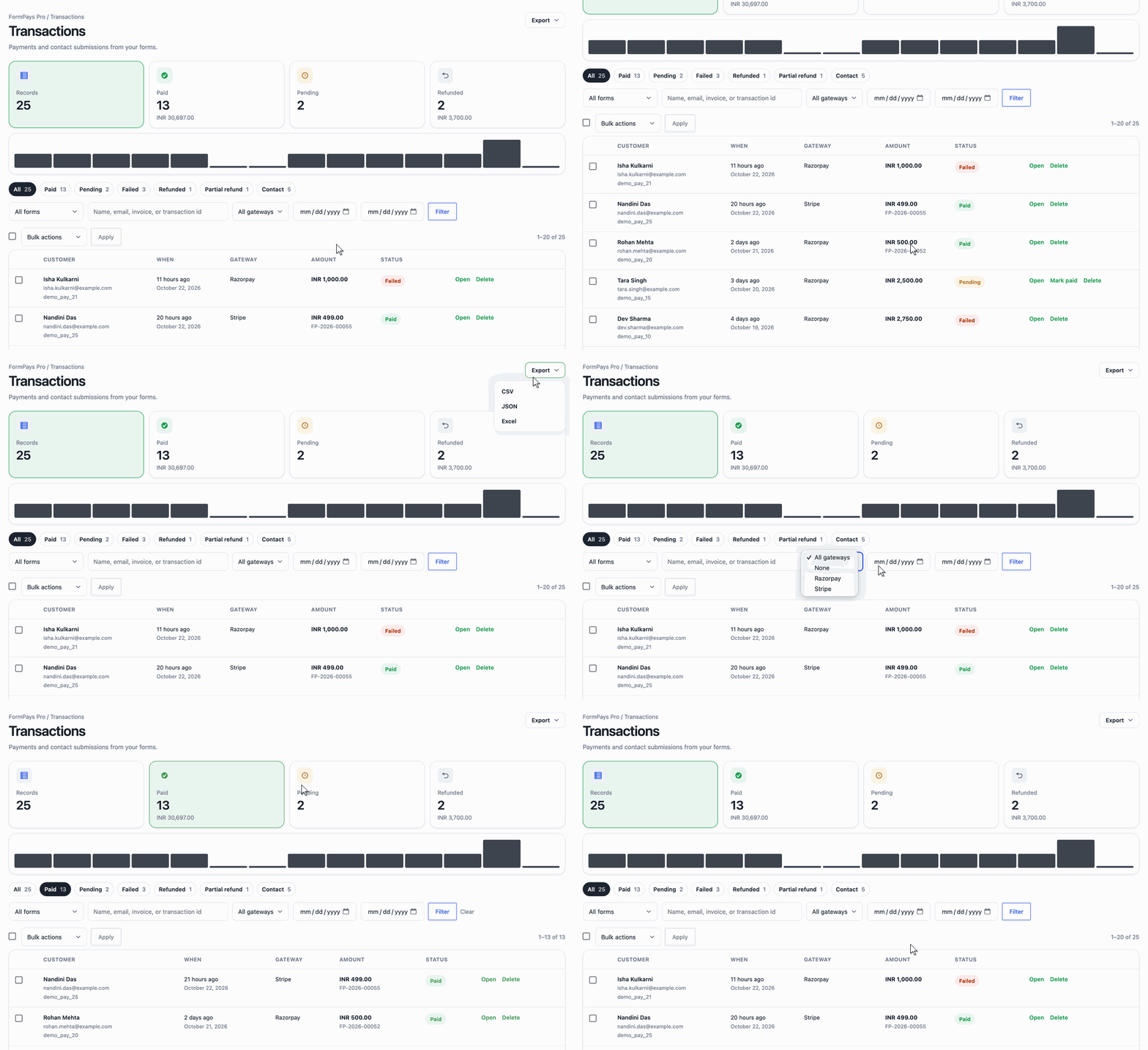
- Download a form’s transactions as CSV, JSON, PDF, or Excel, or email those files on a daily, weekly, or monthly schedule.
- Send a signed notice to a URL you choose when a payment succeeds, fails, or is refunded.
Gateways
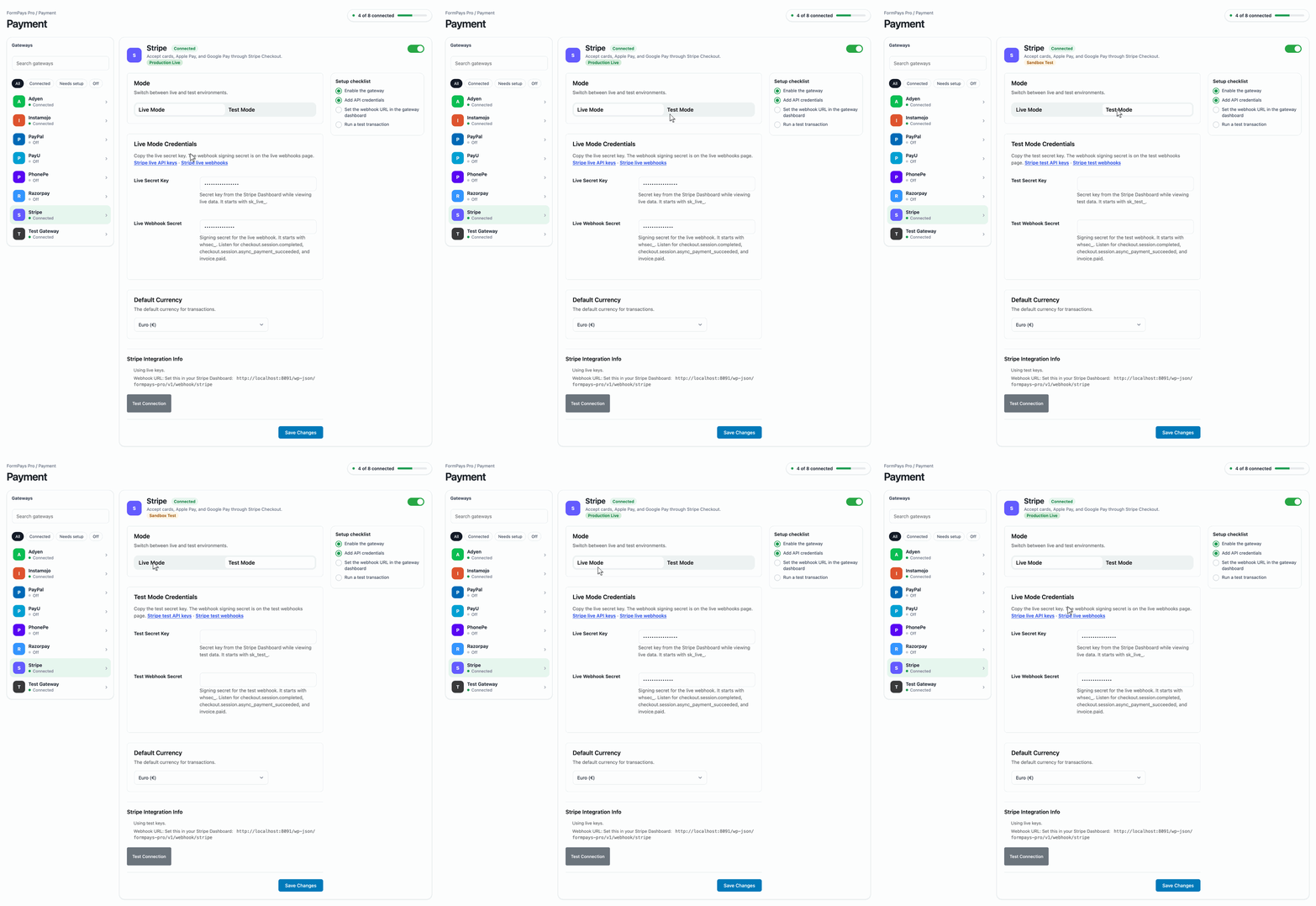
Stripe (cards, Apple Pay, and Google Pay; Apple Pay and Google Pay appear on the Stripe checkout page when the customer’s device supports them), Adyen (cards, Apple Pay, and Google Pay on an Adyen payment link), Razorpay (cards, UPI, net banking, and wallets), PayU (cards, UPI, net banking, and wallets), PhonePe (UPI and other Indian payment methods), PayPal (cards and PayPal balance), Instamojo (cards, UPI, and net banking), UPI QR Code (a UPI ID and a QR code beside the payment instructions; the visitor submits a 12-digit UTR and you confirm the payment), Offline Payment (bank transfer, wire, NEFT, and RTGS; the visitor submits a date, reference, and proof and you confirm the payment), and a test gateway for development. The test gateway accepts a payment only while test mode is on. UPI QR Code and Offline Payment do not use test mode.
Stripe, Razorpay, and PayPal can bill later subscription periods. PhonePe, PayU, and Instamojo email a link when the next period is due.
Security
- The amount is calculated on the server. A submitted total cannot lower the charge.
- Return URLs and webhooks confirm the paid amount and currency before a payment is marked successful.
- Gateway credentials are encrypted.
- Checkout is rate limited. Spam protection can use a hidden field, a minimum submit time, a country list, a keyword list, Cloudflare Turnstile, Google reCAPTCHA, hCaptcha, or Akismet. Each form can use the plugin settings or its own.
- Once an hour, a pending checkout is checked with the gateway. It is marked successful only when the amount and currency match.
External services
The plugin contacts a payment gateway only when that gateway is enabled and a customer submits a form that uses it. Card numbers are handled by the gateway and are not stored on the site.
Razorpay
Razorpay processes the payment. The plugin sends the customer name, email, mobile number, amount, currency, and order details.
PayU
PayU processes the payment. The plugin sends the customer name, email, mobile number, amount, currency, and order details.
PhonePe
PhonePe processes the payment. The plugin sends the customer name, email, mobile number, amount, currency, and order details.
Adyen
Adyen processes the payment, including cards, Apple Pay, and Google Pay on the Adyen payment page. The plugin sends the customer name, email, amount, currency, and order reference. Card numbers are entered on Adyen and are not stored on the site.
Stripe
Stripe processes the payment, including Apple Pay and Google Pay on the Stripe checkout page. The plugin sends the customer email, amount, currency, and order details. Card numbers are entered on Stripe and are not stored on the site.
PayPal
PayPal processes the payment. The plugin sends the customer name, email, amount, currency, and order details.
Instamojo
Instamojo processes the payment. The plugin sends the customer name, email, mobile number, amount, currency, and order details.
Cloudflare Turnstile, Google reCAPTCHA, hCaptcha, and Akismet
These run only when you select one under FormPays Pro Settings Spam protection, or on a form that overrides that choice, and the required keys are saved. Turnstile, reCAPTCHA, and hCaptcha load that provider’s script on the form, and the plugin sends the visitor’s token to the provider to confirm it. Akismet runs only when the Akismet plugin is connected. The plugin sends the visitor IP address, browser, name, email address, and the text answers to Akismet. It does not send card details.
Cloudflare Turnstile, Cloudflare privacy, Google reCAPTCHA, Google privacy, hCaptcha, hCaptcha privacy, Akismet, Akismet privacy
This runs only when WhatsApp is turned on under FormPays Pro Integrations and the form is set to use it. The plugin sends the form answers, the customer name and email, and, for a payment, the amount, currency, and transaction ID to the WhatsApp Cloud API. Meta delivers that message to the WhatsApp number saved in the integration. It does not send card numbers. Meta delivers a free-form message after that number has messaged the WhatsApp Business number.
WhatsApp Cloud API, Meta terms, Meta privacy
Google Analytics
This runs only when Google Analytics is turned on under FormPays Pro Settings. On a page that shows a form, or on a payment return page, the plugin can load Google’s tag when a Measurement ID is saved. It sends the form name, form ID, and, for a payment, the amount, currency, and transaction ID. It does not send names, email addresses, or field answers. Page views are left to the tag already on the site.
Google Analytics, Google Analytics terms, Google privacy
Google address autocomplete
This runs only when an API key is saved under FormPays Pro Settings Google Address autocomplete and Suggest addresses from Google is turned on for that Address field. The visitor’s browser loads Google’s Maps script and sends the address text they type to Google. Choosing a suggestion fills the street, city, state, postal code, and country. The plugin does not store the API key in the submission, and it does not send card details.
Google Maps Platform, Google Maps Platform terms, Google privacy
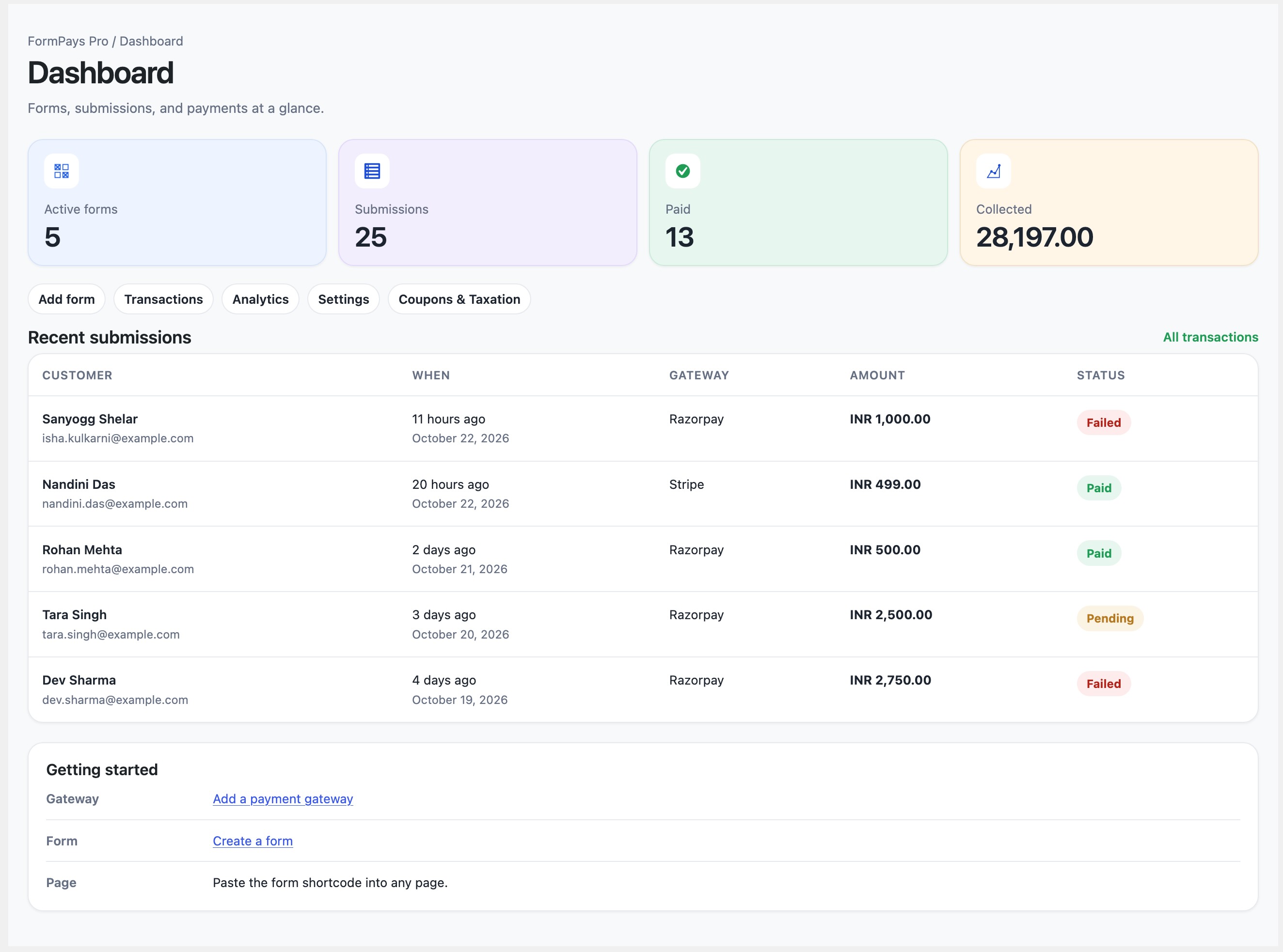
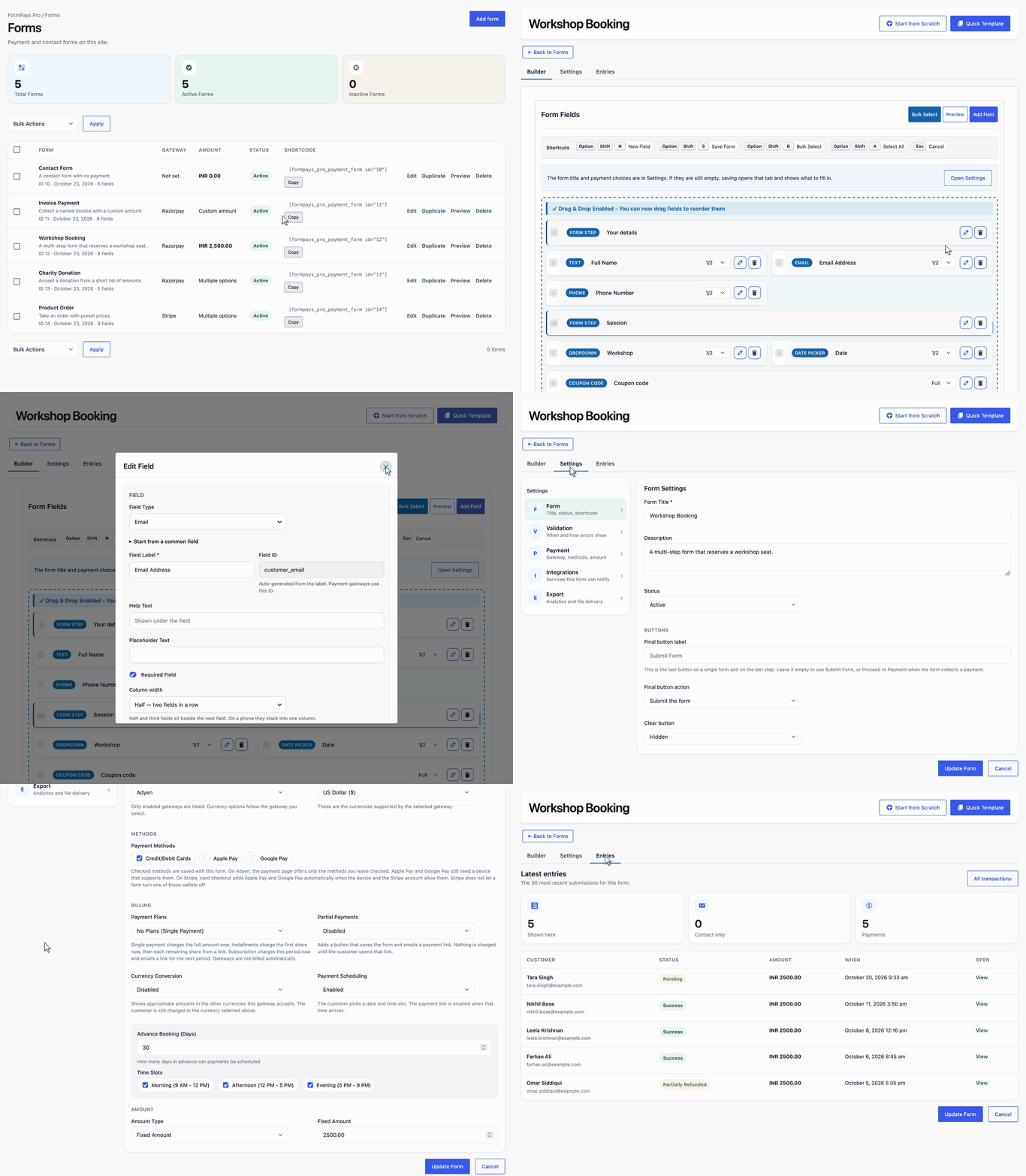
Screenshots

Blocks
This plugin provides 2 blocks.
- FormPays Pro Form
- Form field
Installation
- In WordPress, go to Plugins Add New Upload Plugin and select the plugin ZIP file.
- Click Install Now, then Activate.
- Open FormPays Pro Payment, enable a gateway, and save its credentials.
- Open FormPays Pro Forms Add New. Leave Payment Collection on for a payment form, or turn it off for a contact form. Save the form and place its shortcode on a page.
The site needs WordPress 5.0 or later and PHP 7.4 or later. Use HTTPS when you accept live payments.
FAQ
-
Can I use it as a contact form?
-
Yes. On the form, set Payment Collection to Disabled (Data Collection Only). The answers are saved and emailed to the site admin. No payment gateway is used. Contact Form and Support Ticket are available as templates.
-
Where do I see analytics?
-
Open FormPays Pro Analytics. Every form is included until you choose one. Each form can turn analytics on or off from its Share tab. The report shows a line chart, complete versus incomplete, device breakdown, views, submissions, and the conversion rate from views to completed submissions.
-
How do I add a form to a page?
-
Create the form under FormPays Pro Forms. Copy the shortcode from the form’s Share tab and paste it into a page:
[formpays_pro id="123"]Replace 123 with the form’s ID. A page that already contains
[formpays_pro_payment_form id="123"]still shows the same form.You can also add the FormPays Pro Form block in the editor and choose the form.
Elementor, Divi, Beaver Builder, WPBakery, and SiteOrigin Page Builder list FormPays Pro Form when that builder is installed. Choose the form in the module. SiteOrigin uses the FormPays Pro Form widget.
-
Which currencies can a form use?
-
The currency list follows the gateway selected on that form. A currency the gateway does not accept cannot be saved.
-
How do refunds and receipts work?
-
Open the transaction and use Refund or the receipt download. Receipts are also linked from the payment email. Tax rules and the invoice prefix are under FormPays Pro Settings Coupons & Taxation.
-
How do subscriptions renew?
-
On Stripe, Razorpay, and PayPal, the first checkout starts a subscription and later periods are billed by the gateway. For Stripe, listen for
checkout.session.completedandinvoice.paid. Turn onsubscription.chargedandpayment.capturedin the Razorpay webhook, andPAYMENT.SALE.COMPLETEDin the PayPal webhook, so those renewals are recorded.On PhonePe, PayU, and Instamojo, the customer receives an email with a link when the next period is due.
-
How do I test a payment?
-
Enable test mode for the gateway and use the test credentials from that gateway’s dashboard. The plugin’s test gateway can complete a signed payment only while its test mode is on.
-
What if the form or the payment does not complete?
-
Confirm the form is active, the shortcode ID matches the form, and the gateway credentials and webhook secret are saved. A pending payment is checked again within an hour. It is marked successful only when the gateway confirms the amount and currency.
-
How do I split a form into steps?
-
Add a Form Step field where the next step should begin. The form shows Previous, Next, and Submit. Each step can use its own Next button name, and a conditional rule can skip a step. The Multi-step Form template includes three steps.
-
Can a field show a prefix, a suffix, or move its label?
-
Yes. Edit a text, email, phone, website, number, date, time, or coupon field and set a prefix or suffix. Each one can be short text, such as # or qty, or an icon, such as a person, envelope, or phone. The same editor has a Label choice: Default, Inline, Top, Bottom, Left, Right, or Hide. Hide keeps the label for screen readers and does not show it. A sample in the editor shows the choice before you save. Calculation fields keep their own text prefix and suffix.
-
Can visitors choose a product and pay its price?
-
Yes. Set Amount Type to Multiple Options. Each row is a product with an image, a name, a base price, and a sale price. The visitor chooses one. The charge is the sale price when it is set, otherwise the base price. Amount label sets the heading above the products. Leave it empty to use Select amount. The transaction shows that product name.
-
How do coupons work?
-
Add a Coupon code field to a payment form, then create the code under FormPays Pro Settings Coupons & Taxation. A code can be a percent or a fixed discount, and it can be limited to one form, a minimum amount, an expiry date, and a number of uses. Apply checks the code and does not use it up. Checkout uses the code when the payment starts.
-
How does tax appear on a receipt?
-
Open FormPays Pro Settings Coupons & Taxation, set the country and State of service, then add a rule with a tax name and rate. A rate can be split into two names, such as CGST and SGST. Add India GST rules inserts CGST with SGST, and IGST. The amount collected is treated as tax-inclusive. With no rules, the receipt shows the amount paid.
-
Where do Apple Pay and Google Pay appear?
-
On Stripe, Apple Pay and Google Pay appear on the Stripe checkout page when the customer’s device supports them. On Adyen, they appear on the Adyen payment link when those methods are checked on the form. Save the form after checking Apple Pay or Google Pay.
-
Can a form send the answers to another tool?
-
Yes. Open FormPays Pro Integrations. A form can send to a webhook, Zapier, Make, Pabbly, n8n, Integrately, IFTTT, Slack, Telegram, WhatsApp, Mailchimp, Brevo, MailerLite, ActiveCampaign, FluentCRM, MailPoet, or Google Sheets. Each form can choose which of the connected tools run. A contact form success is included. WhatsApp sends the form details to the number saved on that integration.
-
What does Spam Protection do?
-
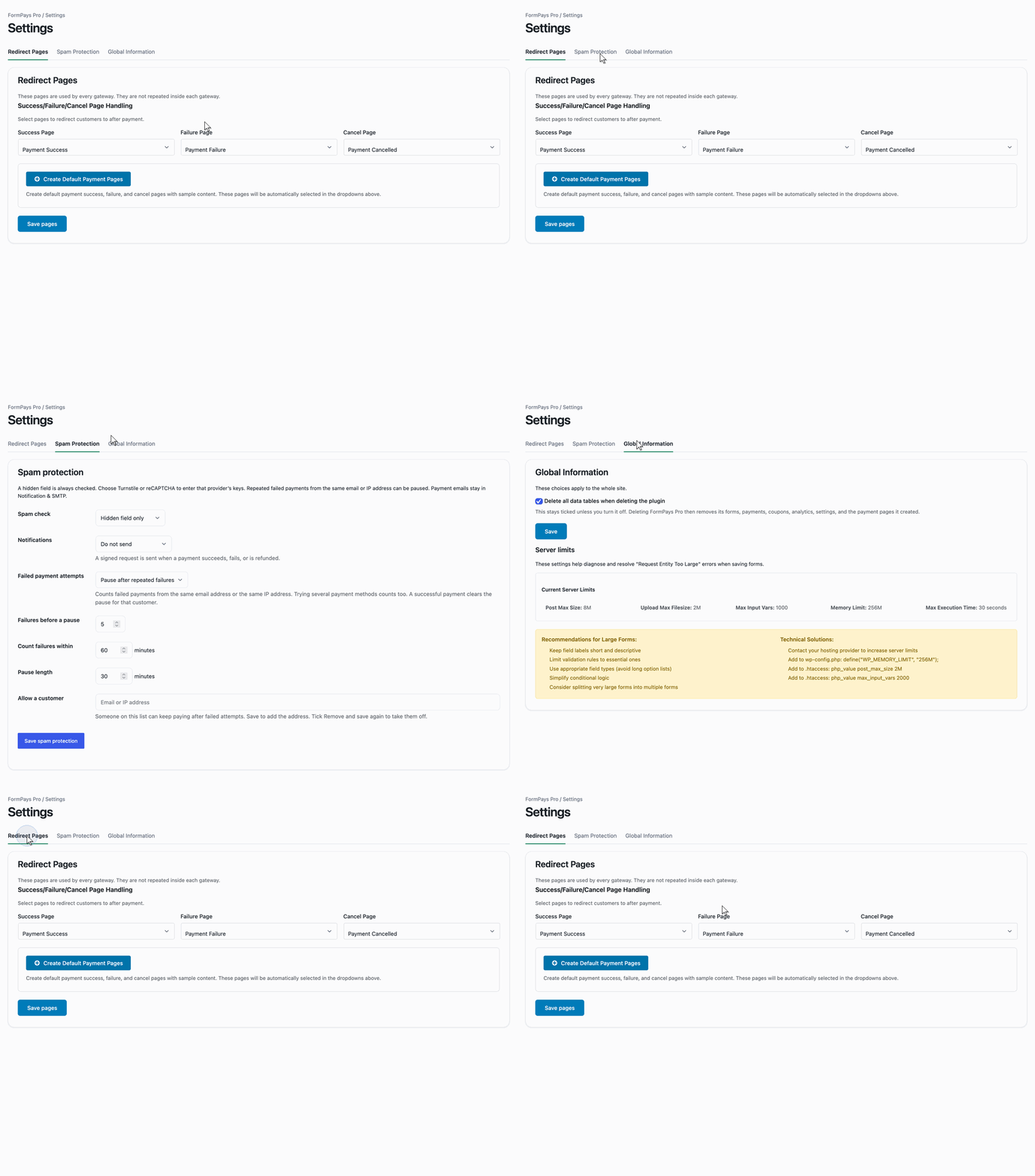
Open FormPays Pro Settings Spam protection. Anti-spam protection is a hidden field visitors do not see. Minimum time rejects a submission that arrives too quickly. A country filter allows or denies two-letter country codes when the site is behind Cloudflare. A keyword filter rejects an entry that contains a word or phrase you list. The spam check can be Cloudflare Turnstile, Google reCAPTCHA, hCaptcha, or Akismet. Akismet uses the Akismet plugin and its key. Each form can keep these plugin settings or replace them under Settings Protection. Keys for Turnstile, reCAPTCHA, and hCaptcha stay in the plugin settings. Spam Protection can also pause repeated failed payments from the same email or IP. You choose the limit, the time window, and how long the pause lasts. An allowed email or IP can keep paying, and a successful payment clears the pause.
-
Can I send conversions to my own Google Analytics?
-
Yes. Open FormPays Pro Settings Google Analytics and turn on Send form events to Google Analytics. Leave the Measurement ID empty when Google Analytics or Tag Manager is already on the site. Paste a GA4 Measurement ID only when the site does not already load a tag. A contact form success is a lead. Starting a payment is begin checkout, and the paid return page is a purchase. Names, email addresses, and field answers are not sent. This is separate from the analytics switch on each form.
-
Can I add my own template?
-
Yes. Open FormPays Pro Templates and choose Add template. Give it a name, choose a category, and add the fields. Tick Collect a payment when the form should take a payment, then choose a customer amount, a fixed amount, or preset amounts. Preview, Export, and Import work for these templates. Edit and Delete are available on a template you added. Use Template creates the form and opens it in the editor. Built-in templates stay as they are.
-
Can a customer pay later or in parts?
-
Yes. A form can charge the full amount, split it into installments, or start a subscription. The customer can also save the form and pay later from an emailed link, or pick a date and time slot. The payment link is emailed when that time arrives. One reminder is sent when a checkout stays pending, and the customer can retry that same payment from a signed link.
-
How are invoice numbers assigned?
-
A successful payment receives the next invoice number, such as FP-2026-00041. Set the prefix under FormPays Pro Settings Coupons & Taxation.
-
Can a field show or hide based on another answer?
-
Yes. In the form builder, add a conditional rule. The rule can show, hide, enable, or disable a field when another field matches. A rule can also skip a form step. The public form applies those rules.
-
How do I send mail through my own server?
-
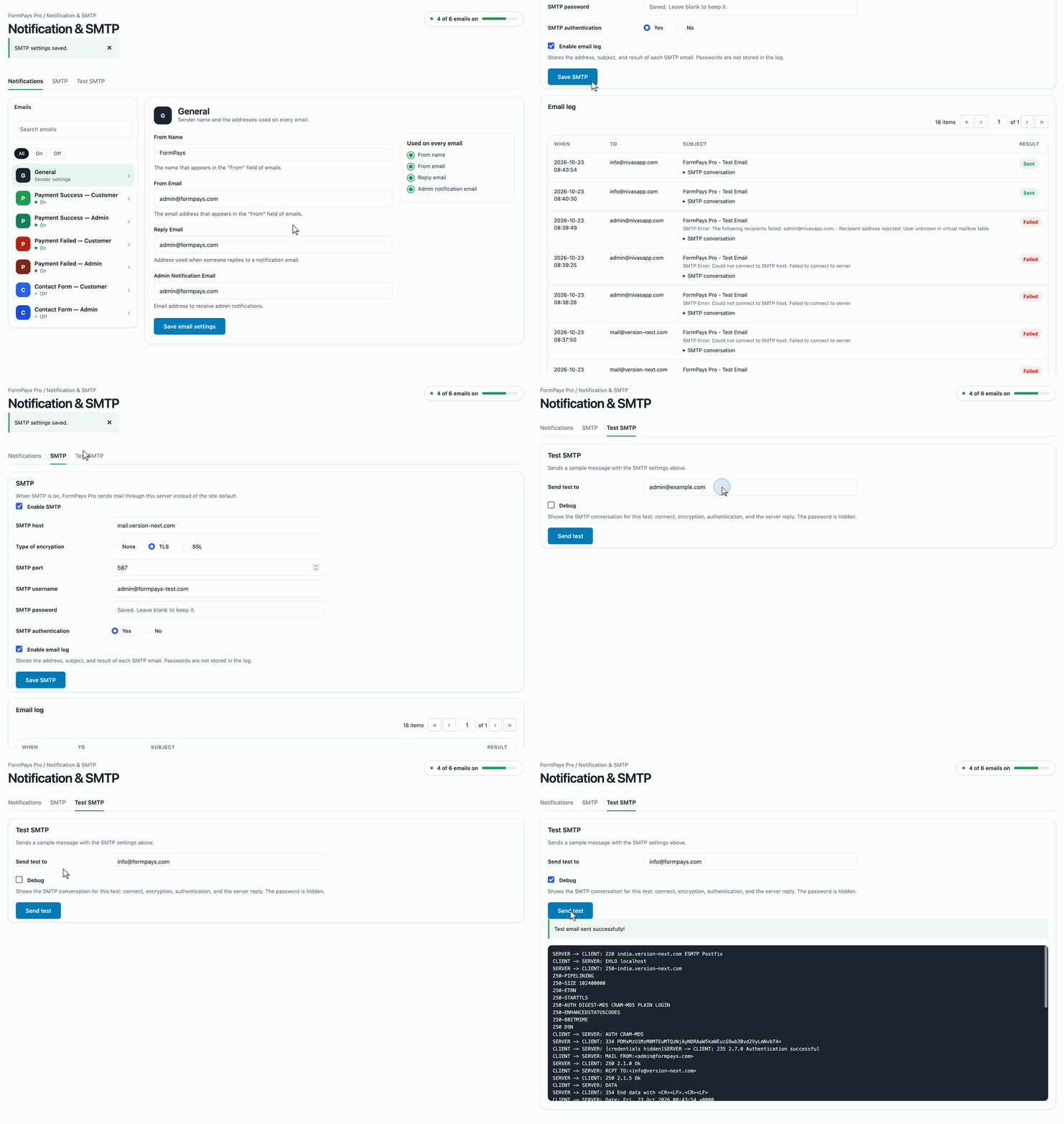
Open FormPays Pro Notification & SMTP and use the SMTP tab. Save the host, port, encryption, and mailbox, then send a test message. Tick Ignore certificate verification when the test says the certificate could not be verified. The log lists recent messages, 20 at a time.
-
What is sent when a payment succeeds, fails, or is refunded?
-
A form can email the customer and the site admin. It can also send a signed notice to a URL you choose. Open FormPays Pro Integrations for the webhook, or the notification setting for that signed URL.
-
Does deleting the plugin remove its data?
-
Only when Delete all data tables when deleting the plugin stays ticked under FormPays Pro Settings Global Information. That option is ticked unless you turn it off. Deleting the plugin then removes its forms, payments, coupons, analytics, settings, and the payment pages it created.
-
Can I download or email the transactions?
-
Yes. Open FormPays Pro Transactions, choose a form if you want one form only, and download CSV, JSON, PDF, or Excel. A form can also email those files on a daily, weekly, or monthly schedule. Analytics has its own export for views, starts, and payments.
Reviews


Contributors & Developers
“FormPays Pro – Payment Form, Contact Form & Custom Form Builder” is open source software. The following people have contributed to this plugin.
Contributors

Translate “FormPays Pro – Payment Form, Contact Form & Custom Form Builder” into your language.
Interested in development?
Browse the code, check out the SVN repository, or subscribe to the development log by RSS.
Changelog
1.2.13
- New: Multiple amount options can list products. Each product has an image, a name, a base price, and a sale price. The visitor chooses one and pays the sale price when it is set, otherwise the base price.
- New: Amount label sets the heading above those products. Leave it empty to use Select amount.
- Improvement: UPI QR Code shows the QR code beside the payment instructions. The UTR field uses the width of that column. On a narrow screen they stack.
- Improvement: When a form has only one payment method, it does not ask the visitor to choose a method.
- Improvement: The transaction screen shows the product the visitor chose. A custom amount is shown with the other answers.
- Bug fix: Activating the plugin creates its database tables on a new site.
1.2.12
- New: The FormPays Pro Form block builds a form in the page editor. Each field is its own block. Saving the page saves a real form, with entries and a shortcode. An existing form can be loaded into the block. New form clears the block and leaves the saved form in place.
- New: Form width can be full width, a centered box, or a fixed width in pixels. Set it in the form editor or in the block.
- New: Form protection can require the visitor to be logged in, or require a password, before the form is shown.
- New: UPI QR Code takes a payment from a UPI ID. The form shows the QR code. The visitor pays and enters the 12-digit UTR. The payment stays on hold until you confirm it. There is no test mode.
- New: Offline Payment takes a bank transfer, wire, NEFT, or RTGS. The form shows the account. The visitor enters the transfer date, the bank reference, and a proof file. The payment stays on hold until you confirm it. There is no test mode.
- Improvement: Offline Payment accepts currencies for major countries, and each one has a currency symbol. The amount on a form uses the currency selected for that form.
- Improvement: IFSC is optional on Offline Payment.
- Improvement: Offline Payment and UPI QR Code use the same Confirmation settings as a form that does not collect a payment. Set the message, where it appears, and whether the form stays on the page, opens a WordPress page, or opens a custom URL.
- Improvement: A form with a list of amounts shows those choices on the form.
- Improvement: The block lists only integrations that are turned on.
- Improvement: Half and third width fields sit side by side in the block editor.
- Improvement: Offline Payment and UPI QR Code have colored icons on the Payment screen.
- Improvement: Accessibility Features and the shortcode sit in two columns on a wide screen and one under the other on a small screen. The shortcode has a copy icon.
- Bug fix: The WordPress admin menu stays in front of the form editor.
- Bug fix: The selected payment check no longer covers Bank transfer or UPI.
- Bug fix: Proceed to Payment starts an Offline Payment or a UPI QR Code payment.
- Bug fix: A password form is no longer submitted as a normal form.
1.2.11
- Bug fix: A Section Divider shows the divider on the form. It no longer shows a text input.
- Bug fix: The public form shows the form name with the description. Shown is the default. Hidden leaves both off the form.
- Bug fix: Payment success, failure, and cancel pages use the active theme’s type and buttons.
- Bug fix: The forms list action icons stay on the same row line as the rest of the form.
- New: Integrations can send a submission to WhatsApp through the WhatsApp Cloud API when a phone number ID and token are saved.
- New: An Empty Spacer field adds a gap between fields. Set the height in pixels. Visitors see only the space. A new spacer is named Empty Space.
- New: Each form has an Appearance section on the Form tab. A CSS class and custom CSS apply to that form only.
- New: An Address field can suggest addresses from Google. Save the API key under Settings Google Address autocomplete, then turn on Suggest addresses from Google for that field. Optional country codes limit the suggestions.
- New: Analytics shows a line chart and two donut charts for the dates you choose: submissions over time, complete versus incomplete, and desktop, mobile, and tablet. Each summary card can switch metric and compares with the previous period.
- Improvement: Editing a form shows Back to Forms and Update Form. Start from Scratch and Quick Template stay on a new form.
- Improvement: The forms list shows how many submissions each form has. Edit, Duplicate, Preview, and Delete are icons. The shortcode sits in one box with a copy icon.
- Improvement: The shortcode is
[formpays_pro id="123"]. A page that already uses[formpays_pro_payment_form id="123"]still shows the same form. - Improvement: Coupons & Taxation is a tab under Settings. The old Coupons menu address opens that tab.
1.2.10
- New: Settings Google Analytics can send form events to the tag already on the site, or load a tag when a Measurement ID is saved. A contact form success is a lead. Starting a payment is begin checkout, and the paid return page is a purchase. Names, email addresses, and field answers are not sent.
- New: Text, email, phone, website, number, message, date, time, coupon, and custom amount fields can show a prefix and a suffix. Each one can be short text or an icon. The field editor shows a sample before you save.
- New: A field label can be Default, Inline, Top, Bottom, Left, Right, or Hide. Hide keeps the label for screen readers and does not show it on the form.
- New: Notification & SMTP can ignore certificate verification. No certificate file is stored.
- New: Settings Spam protection can use a hidden field, a minimum time before submit, a country allow or deny list, and a keyword list. The spam check can be Cloudflare Turnstile, Google reCAPTCHA, hCaptcha, or Akismet. Each form can keep those plugin settings or replace them under Settings Protection.
- New: Each form has a Confirmation tab. A form that does not collect a payment can show your message in the form, as a toast, or as an alert, at the top or bottom. It can then stay on the page, open a WordPress page, or open a custom URL.
- New: A payment form can choose its own success page and failure page. After a successful payment, the visitor can download a receipt from the success page.
- Improvement: The selected field shows Move, Up, Down, Edit, Duplicate, and Delete. The first field hides Up. The last field hides Down.
- Improvement: Built-in templates add a prefix or suffix on name, email, phone, invoice number, quantity, date, and coupon fields.
- Improvement: The Add template dialog stays inside the screen. The amount stays hidden until Collect a payment is checked.
- Improvement: The final button label and the clear button stay on the Form tab.
- Improvement: When payment collection is on, Confirmation shows the success page, the failure page, and the receipt. The thank-you message and the final button action stay available when payment is off.
1.2.9
- Bug fix: Saving a form keeps Apple Pay and Google Pay when those methods are checked. Adyen offers the methods selected on the form.
- Bug fix: The first Save Field adds the field once.
- Bug fix: A fixed amount stays the amount set in Form Settings. The payment step no longer shows 0.00.
- Bug fix: The coupon input uses the same style as the other fields, and it appears only when the form includes a Coupon code field.
- New: Tax rules follow the customer’s country and state. Set the country and State of service under Coupons & Taxation. A rule can be removed. Add India GST rules inserts CGST with SGST, and IGST. With no rules, the receipt shows the amount paid and does not add tax.
- New: A Coupon code field checks the code against the form, expiry, usage, and minimum. Apply does not use up the code. Checkout uses it when the payment starts.
- New: Payment is its own menu, after Integrations.
- New: Spam Protection can pause repeated failed payments from the same email or IP. The limit, the time window, and the pause length can be changed. An allowed email or IP can keep paying. A successful payment clears the pause.
- New: Transactions can be filtered by form. All forms is the default, and the export uses the same filter.
- New: Analytics opens on every form. Choose one form to limit the counts, the event list, and the export.
- New: Each form step can name its Next button. A conditional rule can skip a step.
- New: A form can choose which connected integrations run. The integration screen keeps a short delivery log when a send fails.
- New: Global Information can delete this plugin’s data when the plugin is deleted.
- Improvement: Coupons & GST is now Coupons & Taxation. Tax rules are cards, and the second tax name fills the row when the rate is split. The coupon list matches the transactions table.
- Improvement: Built-in templates use form steps and column widths. Payment templates include a coupon field. Templates can be previewed, and you can add, import, and export your own.
- Improvement: Field types are listed in alphabetical order. The form shortcode is shown under Accessibility Features after the form is created.
- Improvement: Analytics summary cards use the same pastel colors as the dashboard.
- Improvement: The SMTP email log uses WordPress pagination, 20 rows at a time. Bulk actions and Clear log are removed from that log.
- Improvement: Payment email settings stay in Notification & SMTP. Spam Protection no longer repeats that email address block.
1.2.8
- The Adyen icon on the gateway settings screen uses Adyen green, so the letter stays visible.
- Form fields can include help text, a website address, and a consent checkbox. Number fields can set a minimum, maximum, and step.
- Dropdown, radio, and checkbox options can use Label|value when the stored answer should differ from the label. Phone numbers may include spaces, dashes, and parentheses.
- Date, file, address, rating, slider, HTML, section, and calculation settings are saved with the field.
- Checkout protection and signed notifications are on the Settings screen. Site key and secret key appear for Turnstile or reCAPTCHA, with a link to the page that issues them. Each gateway links to the page that issues its keys. Server limits are at the bottom of Settings.
- A gateway switch turns green as soon as it is on, and gray as soon as it is off. An enabled gateway shows Production Live or Sandbox Test, and Integration Info says whether live keys or test keys are in use.
- The forms list keeps the counts together, shows each form’s details on one line, and shows Not set when no gateway is chosen.
- Dragging a field stays with the pointer. Editor shortcuts use Option+Shift on Mac and Alt+Shift on Windows: N adds a field, S saves, B toggles bulk select, A selects all fields, and Esc cancels.
- Conditional logic can add a rule group. A rule shows, hides, enables, or disables a field when another field matches, and the public form applies those rules.
- The Start from Scratch and Quick Template icons line up with their labels.
- The same form can be inserted from the FormPays Pro Form block, and from Elementor, Divi, Beaver Builder, WPBakery, and SiteOrigin when that builder is active.
- Integrations is its own menu. A form can send to a webhook, Zapier, Make, Pabbly, n8n, Integrately, IFTTT, Slack, Telegram, Mailchimp, Brevo, MailerLite, ActiveCampaign, FluentCRM, MailPoet, or Google Sheets. Contact form success is included.
- Templates is its own menu. Choose a category, then use the template to create that form and open it in the editor.
- A Form Step field splits a form into steps with Previous, Next, and Submit. The Multi-step template includes those steps.
- Email notifications use the same list and detail layout as Settings.
- An empty form shows Add Field instead of the drag-and-drop notice.
1.2.7
- Adyen payment links for cards, Apple Pay, and Google Pay. The webhook must send AUTHORISATION notifications, signed with the HMAC key.
- The FormPays Pro Form block inserts a form from the editor.
1.2.6
- Stripe Checkout for cards, Apple Pay, and Google Pay. Apple Pay and Google Pay appear when the customer’s device supports them.
- A Stripe subscription bills later periods. Listen for checkout.session.completed and invoice.paid so those payments are recorded.
- Refund a Stripe payment from the transaction screen.
1.2.5
- Invoice numbers: a successful payment receives the next number. Set the prefix under Coupons & GST.
- Pending payments: once an hour, a pending checkout is confirmed with the gateway and marked successful only when the amount and currency match.
- Spam protection: checkout includes a hidden field. Turnstile or reCAPTCHA can be required from Coupons & GST.
- Notifications: a success, failure, or refund can send a signed JSON body to a URL you choose.
- Renewals: a Razorpay or PayPal subscription bills later periods automatically. If that cannot be started, the customer still receives a payment link.
1.2.4
- The CSV export is built in memory. Plugin Check no longer reports a filesystem error for closing that stream.
1.2.3
- Export formats selected on a form can be downloaded from that form. Auto export emails those files on the daily, weekly, or monthly schedule.
1.2.2
- Single payment charges the full amount. Installments charge the first share now and collect the rest from a signed link. Subscriptions charge one period now and email a link for the next period.
- Partial payments let the customer save the form and pay later from an emailed link.
- Currency conversion shows approximate amounts in the gateway’s other currencies. The charge stays in the form currency.
- Payment scheduling lets the customer pick a date and time slot. The payment link is emailed when that time arrives.
1.2.1
- Coupons & GST opens its admin screen instead of the site home page.
- Plugin Check compatibility for a WordPress 6.1-only cache call, the Razorpay retry script, translator comments, and an invalid-link message.
1.2.0
- Refund a successful payment, in full or in part, from the transaction screen.
- Download a PDF receipt. GST can show taxable value and CGST/SGST or IGST. The amount collected is treated as tax-inclusive.
- Add coupon codes with an optional form, minimum amount, expiry, and usage limit.
- Email a customer who leaves checkout pending, with a link to continue.
- Retry a failed or pending payment from the result page or the email without creating a second transaction.
1.1.4
- Payment amounts are calculated on the server. A submitted total cannot lower the charge.
- Return URLs and webhooks confirm the paid amount and currency before a transaction is marked successful.
- Razorpay webhooks require a valid signature. PhonePe, PayPal, Instamojo, and PayU callbacks are confirmed with the gateway before success is recorded.
- The test gateway accepts a payment only while test mode is on.
- Gateway secrets are encrypted and are not stored in plain text when encryption fails.
- Form submissions are sanitized and rate limited, and payment redirects are limited to this site or the payment gateway.
- Customer details are escaped on payment result pages and in notification emails.
- Tested with WordPress 7.1.
1.1.3
- Added email notifications for payment success and failure, with editable templates and a test email.
- Razorpay checkout receives the selected payment method and a formatted phone number.
- Fixed the transaction time on the success page and a deprecated dynamic property warning.
1.1.2
- Admin redirects use wp_safe_redirect().
- Admin screens no longer overwrite the WordPress page, status, or per_page globals.
- Nonce checks cover the admin actions.
1.1.1
- Moved inline admin scripts into files.
- Formatting and documentation updates for the WordPress coding standards.
1.1.0
- Added the PhonePe gateway.
- Stronger webhook and nonce checks.
- Admin and form builder updates.
1.0.0
- Initial release with Razorpay, PayU, the form builder, transactions, email notices, and webhooks.