
Description
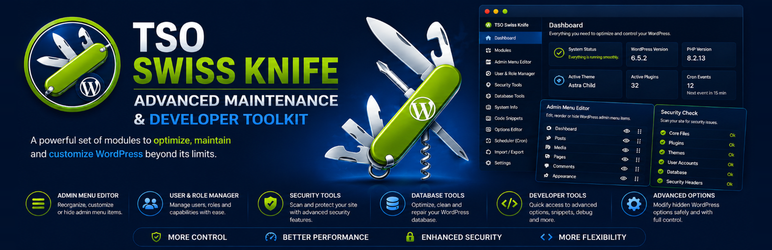
TSO Swiss Knife gives WordPress developers and site administrators a single, well-organised panel (under Tools › TSO Swiss Knife) to inspect and control the internal systems that affect performance, stability, and security.
Included modules
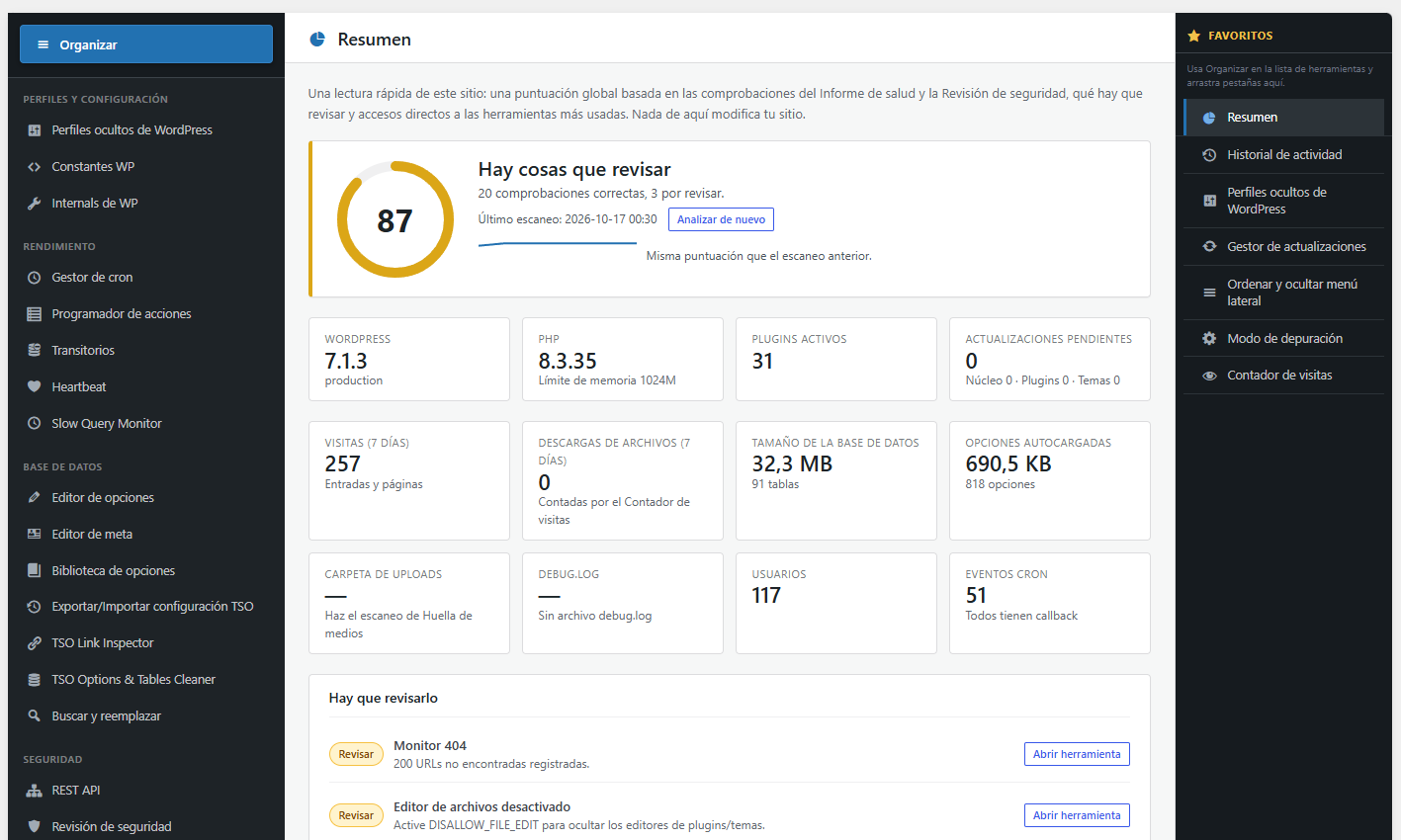
- Overview — Landing dashboard with a 0–100 site score built from the Health Report and Security Review checks, the items that need attention (each with Open tool, Ignore 30 days and Ignore always), quick vitals that deep-link into the matching tool section, shortcuts and recent activity. Nothing is sent off-site.
- Activity History — Central log of changes across all plugin tools (options edited, database replacements, maintenance mode, admin menu, and more). Pinned as the default favorite for quick access.
- Hidden WordPress Profiles — Apply quick presets and toggle safe performance, content, and privacy constants via JSON under the plugin uploads folder (no wp-config.php editing). Runtime filters apply on the next request.
- Cron Manager — List scheduled WP-Cron events (WordPress core events at the bottom), run or delete non-core hooks, and keep WordPress core cron events read-only (no manual Run / Edit / Delete).
- Action Scheduler — Inspect WooCommerce Action Scheduler tables, pending actions, and queue health when the library is present.
- Debug Mode — One-click Developer mode for staging that turns on
SAVEQUERIESfor the Slow Query Monitor, saved as JSON underwp-content/uploads/tso-swiss-knife-advanced-maintenance-developer-toolkit/config/.WP_DEBUG,WP_DEBUG_LOG,WP_DEBUG_DISPLAYandSCRIPT_DEBUGare set by WordPress before plugins load, so the tab shows their current value and source (read-only) plus copy-pastewp-config.phpsnippets to change them. - Options Editor — Search, inspect, edit, and safely delete
wp_optionsrows with core options protected. - Meta Editor — Browse and edit post and user meta. Without an object ID, search matches meta keys only (not values).
- Option Library — Save named option presets and re-apply them across environments.
- Export/Import TSO Configuration — Back up and restore selected plugin settings as JSON (Redirects, Staging Mode, Login Protect, Slow Query, Security Review constants/alerts/server rules, Hidden Profiles runtime flags, and more). Does not include Debug Mode JSON under uploads, the Staging mail log, sandbox sessions, or the Slow Query log.
- Transients — Filter by status and purge expired or all transients in bulk (site transients on multisite require a network/super admin).
- WP Constants — Read-only overview of relevant constants grouped by category.
- WP Internals — Inspect post types, taxonomies, roles, query vars, rewrite tags, and shortcodes.
- REST API Controls — Disable anonymous REST API access or block individual namespaces.
- Heartbeat Controls — Set Heartbeat mode (default / disable frontend / disable editor / disable all) and interval.
- Update Manager — Review pending core, plugin, and theme updates, optionally block update checks (staging), and control update email notifications.
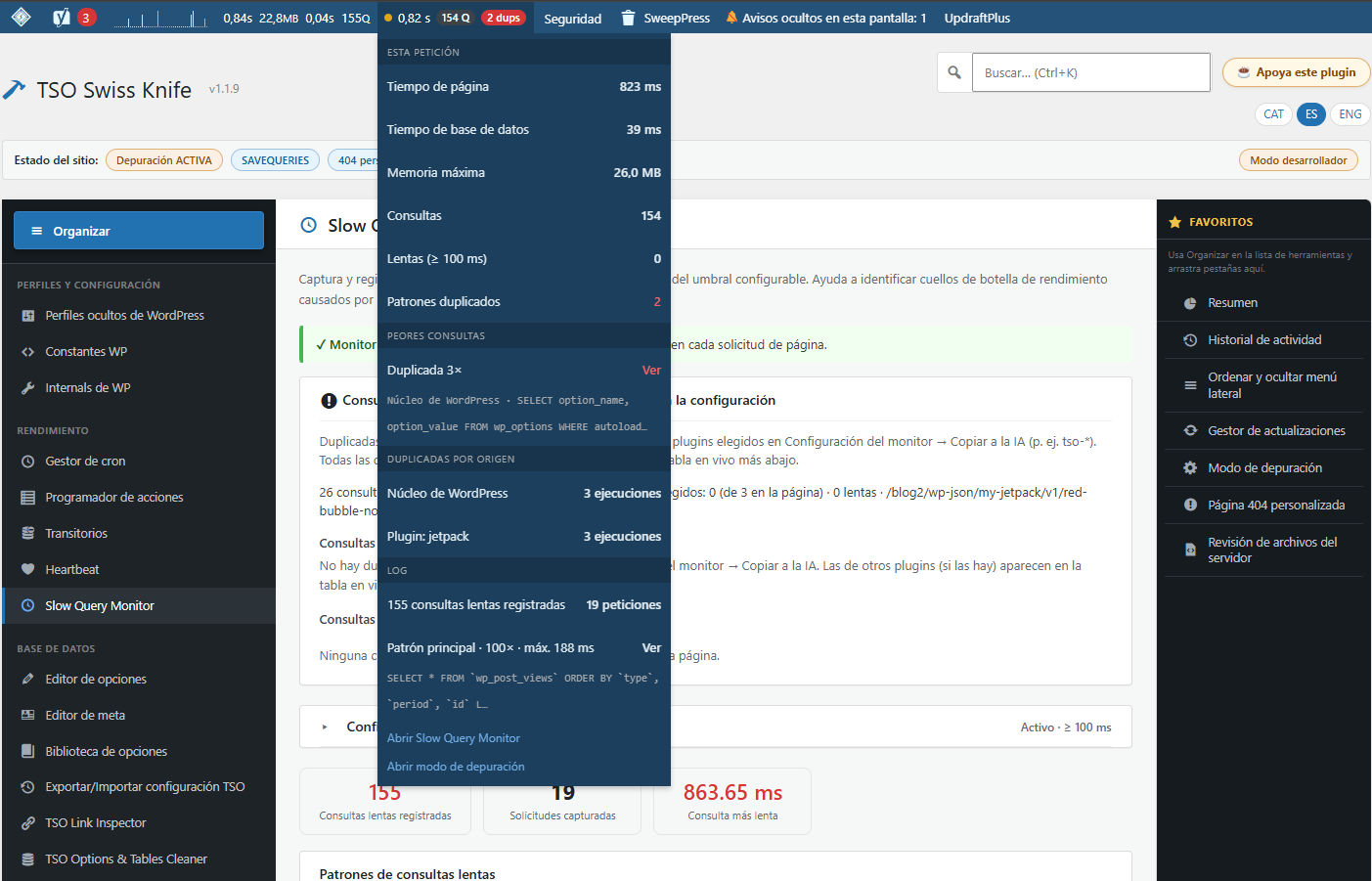
- Slow Query Monitor — Log slow database queries when SAVEQUERIES is enabled, inspect live queries for the current request, export CSV/JSON, and open a summary from the admin bar.
- Search & Replace — Run dry-run or live serialized-safe search and replace across database tables.
- Hooks Inspector — Browse the live
$wp_filterglobal, with callback details and a real-time search filter. - Rewrite Rules Flush — Soft or hard flush with a single click; search within the current rules table.
- Server Files Review — Scan for unexpected PHP files in uploads and other writable directories; optionally save
robots.txt/.htaccesswhen you confirm. - Redirects — Manage safe redirect rules stored in the database with import and export support.
- Custom 404 Page — Assign a WordPress page as the site 404 response while keeping the original URL and a real HTTP 404 status (no redirect).
- Slug Manager — Bulk-edit post and term slugs with conflict detection.
- Health Report — Compact checks for risky settings, logs, 404 noise, and related issues; download HTML/JSON in the plugin UI language.
- Reorder & Hide Sidebar — Drag to reorder WordPress admin menu items, rename labels, nest items under another section, or hide items for all admins.
- Users & Sessions — Summary cards (totals and users per role), per-account session cards with single or full session close, a searchable and sortable All users list with bulk role change (including “select all matching users” and Undo), inactive accounts, and login history.
- Roles & Capabilities — Step-by-step screen: choose a role, review what each capability allows, add or remove capabilities, apply templates, clone a role or compare two roles. Dangerous capabilities are blocked or flagged.
- Media Cleaner — Review unattached media, missing attachment files, and unreferenced uploads.
- Uploads Disk Footprint — Scan the uploads folder for size and file-type footprint statistics.
- Image Sizes Audit — Review registered image sizes and disable unused sizes where appropriate.
- Security Review — Tabbed hardening: Overview checks, WordPress-layer toggles (XML-RPC, pingbacks, author scans, DISALLOW_FILE_EDIT and related constants), reversible Apache server rules (Indexes, deny wp-config / .ht* / sensitive files, PHP in uploads and cache), and Accounts & keys guides (salts, table prefix, admin username — never auto-changed). Soft-disables overlapping .htaccess writers when Kadence Security, Wordfence or similar is active.
- Core File Integrity — Verify WordPress core files against official checksums and flag unexpected changes.
- Login Protection — Custom login URL, brute-force limits, and related hardening controls.
- Comment Anti-Spam — Local honeypot/rate-limit rules plus optional reputation or cloud checks (off until you enable them and add keys where required).
- Email Diagnostics — Inspect wp_mail settings and send a test email.
- Staging Mode — For test copies only (all off by default): red STAGING admin-bar label, ask search engines not to list this copy (without changing Settings Reading), hold outbound email, pause WP-Cron execution, and keep a short administrator-only mail log in the database (CSV export). Turn everything off before copying the database back to production.
- URL & HTTPS Doctor — Explain whether the saved Home and Site addresses still match https, www, and how you opened the admin. Optional one-click loopback check of this site’s own home URL (redirects are not followed), and an optional count of leftover http:// copies of that address. Does not change the database.
- Server & Runtime — Read-only view of PHP limits, object-cache drop-in, other wp-content drop-ins, must-use plugins, and optional OPcache reset when the host allows it.
- Content Audit — Find hidden content issues such as empty titles, missing thumbnails, duplicate titles, and broken shortcodes. Long slugs are reviewed and fixed in the Slug Manager.
- Maintenance Mode — Toggle a 503 maintenance page with a custom message and IP whitelist.
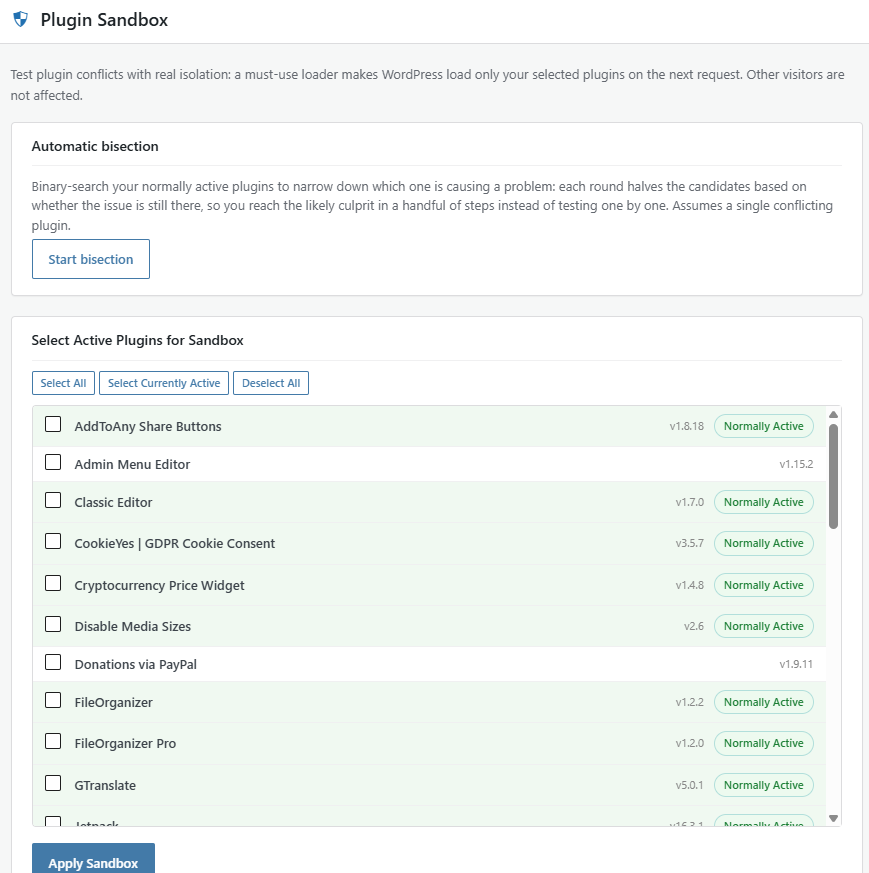
- Plugin Sandbox — Isolate plugin conflicts via a must-use loader: only your selected plugins load for your admin session.
Translations
- On Tools › TSO Swiss Knife, administrators can switch the plugin UI to Catalan (CAT), Spanish (ES), or English (ENG) without changing the site-wide language.
- The same choice applies to this plugin’s AJAX responses and admin downloads (for example Health Report HTML/JSON and URL Doctor messages). It does not change the rest of wp-admin.
- Further locales can be contributed via Translate WordPress once the plugin is published.
External services
This plugin can optionally contact third-party services. None of these calls run unless a site administrator enables the related feature and, where required, provides an API key.
Comment Antispam (optional)
When Comment Antispam reputation or cloud checks are enabled, visitor data from comments or protected contact forms may be sent as follows:
- Stop Forum Spam (
https://api.stopforumspam.org/api) — Used to look up whether an IP address or an email address has been reported as spam. Read-only anonymous lookups: no account or API key is needed. Sends the visitor public IP and an MD5 hash of the email (never the plain email or the username), only when the option is enabled, once per IP/email every 6 hours. Failed lookups pause for a few minutes and the submission is then allowed. Service: Stop Forum Spam. Terms of use · Privacy policy. - AbuseIPDB (
https://api.abuseipdb.com/api/v2/check) — Used to check IP reputation. Sends the visitor IP and your AbuseIPDB API key (request header). Service: AbuseIPDB. Terms of use · Privacy policy. - CleanTalk (
https://moderate.cleantalk.org/api2.0) — Used for cloud spam filtering when CleanTalk mode is selected. Sends your CleanTalk access key plus sender email, IP, nickname, URL, message content, and post/page context. Service: CleanTalk. Terms of use and privacy policy. - Project Honey Pot (HTTP:BL) — Optional DNS-based IP reputation lookup using your HTTP:BL access key and the visitor IPv4 address. Service: Project Honey Pot. Terms of use · Privacy policy.
- Akismet — When cloud mode is set to Akismet and the Akismet plugin is active, spam checks are handled by Akismet according to its own settings and policies. Service: Akismet. Terms of service · Privacy policy.
Core File Integrity (optional)
When you run a core integrity scan, the plugin requests official WordPress core checksums from https://api.wordpress.org/core/checksums/1.0/. Only the WordPress version and locale are sent (no personal data). Service: WordPress.org. Privacy policy.
Update Manager language packs (optional)
When an administrator clicks Install pending translations on the Update Manager tab, WordPress downloads language packs from https://api.wordpress.org/translations/ (via core Language_Pack_Upgrader). Locale and package metadata for pending translations are sent; no personal visitor data. This does not run automatically. Service: WordPress.org. Privacy policy.
URL & HTTPS Doctor (optional)
When you click Check this site, the plugin requests this site’s own home URL through the WordPress HTTP API (a loopback, similar to Site Health). Redirects are not followed. No third-party host is contacted and no personal data is sent. The request only runs after an administrator clicks the button.
Health Report security headers (optional)
Opening Health Report (or downloading its HTML/JSON) may request this site’s own home URL with a HEAD request to list common security response headers. Results are cached briefly. No third-party host is contacted and no personal data is sent.
Screenshots


Blocks
This plugin provides 1 block.
- Tsosk Url
Installation
- Upload the
tso-swiss-knife-advanced-maintenance-developer-toolkitfolder to/wp-content/plugins/, or use Plugins › Add New › Upload Plugin with the ZIP. - Activate the plugin via Plugins › Installed Plugins.
- Navigate to Tools › TSO Swiss Knife.
FAQ
-
Does this plugin work with object-cache plugins like Redis?
-
Yes. Features that use WordPress cache APIs (for example flushing related caches after cleanup tools) call core functions such as
wp_cache_flush()/wp_cache_delete(), which delegate to whatever persistent object-cache drop-in is active (Redis, Memcached, etc.). -
Is it safe to delete an option from the Options Editor tab?
-
The module protects a list of known WordPress core options. For third-party options, verify in your code or database that they are truly unused before deleting.
-
Does enabling Maintenance Mode block the admin?
-
No. Logged-in administrators are always bypassed, regardless of IP whitelist settings.
-
Can I run multiple plugin-testing tools at once?
-
Use only the Plugin Sandbox in this plugin. Combining it with other per-user plugin override tools may produce unpredictable results.
-
Does Update Manager change WordPress auto-updates?
-
No. Automatic updates are managed only by WordPress core (Dashboard Updates). Update Manager can block update checks on staging sites, hide specific plugin updates, and control update email notifications — it does not write
auto_update_*site options or hookauto_update_*filters. -
When should I use Staging Mode?
-
Use it on a cloned / staging / local copy, right after you copy the live site, and before you place test orders or browse as a customer. Enable only the switches you need (badge, noindex, hold email, pause cron, mail log). Turn them all off before you copy that database back to production. Do not leave Staging Mode options enabled on the live site.
-
Does Staging Mode change Settings Reading (“Discourage search engines”)?
-
No. It adds noindex headers, pauses XML sitemaps, and adjusts robots.txt while the option is on. It does not filter or save
blog_public, so opening Settings Reading will not permanently lock “Discourage search engines” after you turn Staging Mode off. -
Does Staging Mode send customer emails from a test copy?
-
Not if you enable Do not send real emails. WordPress still thinks the mail was accepted, but it never leaves the server. A short copy (recipient, subject, excerpt) is stored in the WordPress database for administrators only (not as a public file under uploads). All Staging Mode switches are off until you turn them on.
-
Does pausing scheduled tasks in Staging Mode delete cron events?
-
No. Due events stay in Cron Manager but are not executed while that Staging Mode option is on. Turn it off on the live site so reminders and queues run again.
-
Does URL & HTTPS Doctor change my site address?
-
No. It only explains mismatches (http vs https, www, folder, and constants locked in wp-config.php). The leftover-http count is also read-only. Use Search & Replace if you decide to rewrite stored URLs, after a backup — always run preview first.
-
Can I manually run WordPress core cron events?
-
No. Core hooks (for example
wp_version_checkorwp_maybe_auto_update) are read-only in Cron Manager: Run, Edit, and Delete are blocked in the UI and in AJAX. -
What does Export/Import TSO Configuration include?
-
Selected plugin settings (Redirects, Staging Mode switches, Login Protect, Comment Anti-Spam, Slow Query settings, Health alerts, Security Review constants JSON / admin alerts / Apache server rules, Hidden Profiles runtime flags such as XML-RPC and author scans, and similar). It does not include Debug Mode JSON under uploads, sandbox sessions, the Staging mail log, or the Slow Query log. Import overwrites the sections you choose; always export a backup first. Login Protect never imports an enabled custom login URL (to avoid lockouts). If Staging switches arrive enabled, confirm you are on a test site. Security server rules also rewrite the marked TSO block in
.htaccesswhen import succeeds. -
Does the CAT / ES / ENG language switcher affect downloads and AJAX?
-
Yes for this plugin. Health Report HTML/JSON, URL Doctor messages, and other TSO AJAX/admin-post responses follow the language selected on Tools › TSO Swiss Knife. The rest of WordPress admin keeps the site language.
-
Where does the plugin write files?
-
Runtime config and other managed files go under
wp-content/uploads/tso-swiss-knife-advanced-maintenance-developer-toolkit/. The Staging Mode mail log is stored in the database (not under uploads). The Plugin Sandbox may install a must-use loader undermu-plugins(via the WordPress Filesystem API) so early plugin filtering can run; that loader is removed when no sandbox sessions remain. The plugin does not writewp-content/debug.logor editwp-config.php. -
Does this plugin edit wp-config.php?
-
No. Debug flags, security constants, and hidden-profile toggles are saved as JSON under
wp-content/uploads/tso-swiss-knife-advanced-maintenance-developer-toolkit/config/and applied at runtime. Constants already defined inwp-config.phpalways take precedence and cannot be overridden from the plugin. -
Does Debug Mode create or manage wp-content/debug.log?
-
No. Debug Mode does not create, truncate, or rotate
wp-content/debug.log. Enabling Developer mode only turns onSAVEQUERIES(stored as JSON in the plugin uploads config folder);WP_DEBUGandWP_DEBUG_LOGmust be set inwp-config.php, and WordPress then writesdebug.logas usual. The Debug tab can list and preview common log paths when they already exist. Empty and shrink actions apply only to logs the plugin owns underwp-content/uploads/tso-swiss-knife-advanced-maintenance-developer-toolkit/— never towp-content/debug.log. -
Is debug.log safe to leave on a live site?
-
Not by default. With
WP_DEBUG_LOGset totrue, WordPress writeswp-content/debug.log, which is inside the web root under a predictable name. Depending on your server it may be downloadable by URL, and it can contain absolute server paths, SQL queries and, occasionally, credentials or tokens printed by other plugins. This plugin cannot move the log outside the web root: it only savesWP_DEBUG_LOGastrue/false, and a log path must be defined inwp-config.phpbefore plugins load. Recommended: use Developer mode only on staging, block direct access todebug.logat the server level (Apache/nginx rule), or setdefine( 'WP_DEBUG_LOG', '/path/outside/webroot/debug.log' );inwp-config.php. Delete or empty the file when you finish debugging. The plugin’s own protected folder under uploads (.htaccessdeny rules) does not coverwp-content/debug.log. -
Can Server Files write robots.txt or .htaccess?
-
Yes, but only when you explicitly save from the Server Files Review module. It can write
robots.txtand.htaccessat the site or WordPress root — not underwp-content/uploads/. Always review the generated content before saving on production. -
Who should use Search & Replace or the Options Editor?
-
These tools are intended for experienced administrators and developers. Always run Search & Replace as a dry-run first and keep a database backup. In Options Editor, core options are protected, but deleting or editing third-party options can break plugins or themes. When in doubt, export a snapshot or test on staging.
-
Does Comment Antispam send data to third parties?
-
Only when you enable reputation or cloud checks and, where required, provide API keys. See the External services section above for each provider, what data is sent, and links to their terms and privacy policies. With all cloud features off, checks run locally (honeypot, rate limits, keyword rules, and similar).
-
The plugin sees my CDN or proxy address instead of the visitor’s IP. What can I do?
-
By default the plugin uses the server’s
REMOTE_ADDR, because headers such asX-Forwarded-Forcan be forged when the origin is reachable directly. Behind a CDN or reverse proxy you can opt in by addingdefine( 'TSOSK_TRUSTED_PROXY_HEADER', 'HTTP_CF_CONNECTING_IP' );(orHTTP_X_FORWARDED_FOR) towp-config.php, or by returning the header name from thetsosk_trusted_proxy_headerfilter. Visitor IPs are used only for rate limiting, lockouts, whitelists and short-lived duplicate-hit detection (hashed, never stored in clear for the View Counter); they are not sent to any third party unless you enable a cloud antispam provider listed under External services. -
Why do I see two copies of this plugin after installing?
-
That usually means the ZIP folder name was wrong (for example
…-mainfrom a GitHub download instead oftso-swiss-knife-advanced-maintenance-developer-toolkit). Remove the duplicate folder underwp-content/plugins/, keep only the folder whose name matches the plugin slug, and reactivate.
Reviews
There are no reviews for this plugin.
Contributors & Developers
“TSO Swiss Knife – Advanced Maintenance & Developer Toolkit” is open source software. The following people have contributed to this plugin.
Contributors
Translate “TSO Swiss Knife – Advanced Maintenance & Developer Toolkit” into your language.
Interested in development?
Browse the code, check out the SVN repository, or subscribe to the development log by RSS.
Changelog
1.3.1
- Improved: the Leftovers report no longer lists data that an installed plugin or theme uses in several of its own files, ignores post types that code only lists to exclude them (NOT IN), and its tables wrap their text (cards on phones) instead of scrolling sideways.
1.3.0
- New: automatic day / night theme for the plugin screen (follows sunrise and sunset, with an Auto / Day / Night button in the header; same system as the other TSO plugins). The side columns keep their dark look.
- Fix: Slow Query Monitor could run out of memory on requests that run a huge number of queries; the origin detection and the duplicate-query analysis now stop collecting before the memory limit is reached.
1.2.9
- Improved: the admin script and stylesheet are split per tool and each tab loads only the scripts and styles it needs (lighter, faster screens).
- Improved: Debug logs now mark the old wp-content/debug.log as no longer used when WP_DEBUG_LOG points to another file, and show where to delete it.
- Cleanup: removed unused internal code (dead helper methods, an unused constant and an unused JS helper).
- Improved: bundled translations also ship as .l10n.php files (faster loading on WordPress 6.5+) and unused translation strings were removed from the catalogs.
- Improved: the Slow Query Monitor toolbar menu is now a problem detector: duplicate queries, slow queries and database load are listed by the plugin responsible, and the figures that did not help (queries, memory, log summary) are gone.
- Fix: a few messages (security override hint, spam-provider errors, view counter table error) were shown in English; they are now translated into Catalan and Spanish, and the Comment Anti-Spam logs are more compact on phones.
1.2.8
- Fix: Internals roles table, Leftovers backup rows and the Admin Menu editor no longer show squeezed or letter-by-letter text on phones and narrow screens.
- Fix: tables on Slow Query Monitor, Redirects and 404 Monitor no longer get clipped or crushed on phones and narrow screens; they scroll inside their own card.
- Fix in Comment Anti-Spam: the Recent blocks and Learning log tables no longer break the IP, source and reason into one character per line.
- Fix in Security Review: the wp-config.php constants panel (DISALLOW_FILE_EDIT / DISALLOW_FILE_MODS) no longer crashes with a fatal error.